

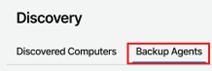
1. Open the Backup Agents Tab
In the top navigation menu, select Backup Agents to view the status of all Veeam Agents for Microsoft Windows.
2. Review Key Agent Information
Verify the following details for each agent:
2.1. Last Heartbeat – Indicates the most recent time the Backup Agent successfully communicated with the portal.
2.2. Agent Status – Shows whether the agent is currently Connected or Disconnected.
2.3. Available Updates – Displays whether any updates are required to keep the Backup Agent fully up to date.
3. Healthy Agent Status
When a Backup Agent is functioning correctly, it will display a healthy state similar to the example below:

4. Offline or Outdated Agent Indicators
If the Backup Agent is offline or requires updates, corresponding error messages or warning indicators will be shown, similar to the example below: