
Start by initiating the installation of the backup agent from within the VSPC portal.
1. Navigate to the Discovery Section
In the left‑hand navigation menu, go to Discovery.
Under Discovered Computers, select the customer environment where the backup solution needs to be deployed.
2. Choose the Deployment Type
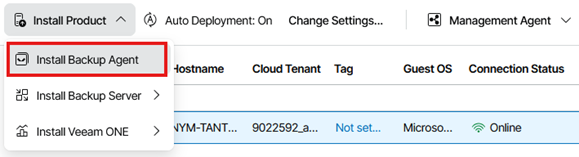
Depending on the type of backup infrastructure you are deploying, select one of the following options:
2.1. Install Backup Agent
Use this option to install the agent on a workstation or server.
2.2. Install Backup Server
Select this option if you are deploying a Veeam Backup & Replication server for managing virtual machine backups.
Note: This option may require additional licensing.
3. Installation Initiation
After selecting the appropriate option, the system will begin the installation process on the workstation or server where the Management Agent is already installed.
4. Policy Information
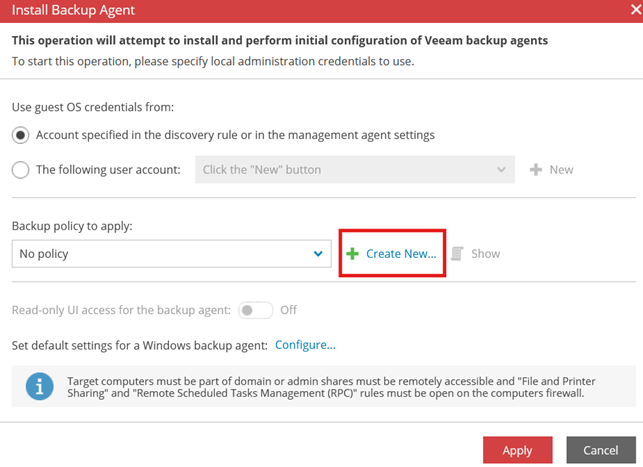
During the initial setup, you will be prompted to create a backup policy. Policies allow you to define standardized backup settings that can be applied consistently across future customers, devices, or jobs.
4.1. When to Create a Policy
If this is your first deployment or if you want to establish standard backup configurations, you can create a new policy. You may create multiple policies to accommodate different backup requirements or service tiers. Please refer to article: “Cloud Backup: Creating Policy Based Jobs” for steps on how to create a policy.
4.2. Using an Existing Policy
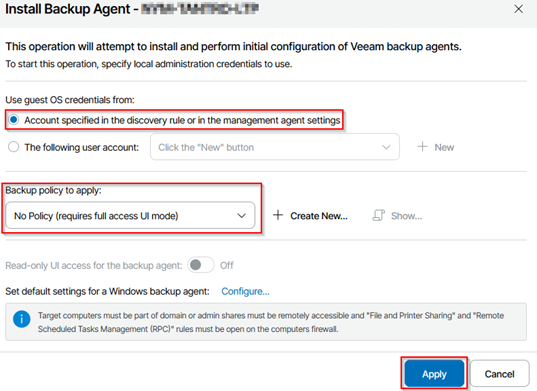
If you have previously created policies, you can select the appropriate one from the drop‑down list. Alternatively, you may leave the selection set to “No Policy”, which will apply the most recently configured job on the machine.
4.3. Creating Custom Jobs
If you prefer to configure custom backup jobs rather than using predefined settings, select “No Policy”. Please refer to article: “Cloud Backup: Creating Custom Jobs” for steps on how to create a custom backup job.
4.4. After selecting the appropriate option, proceed to the next step in the installation workflow.
5. Monitoring the Deployment
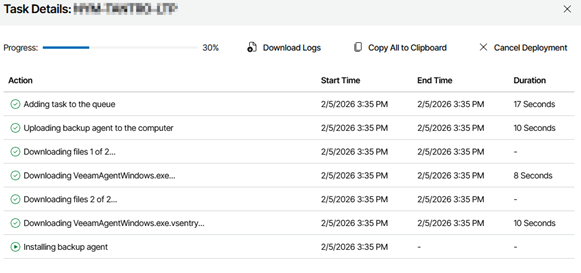
You can track installation progress under Deployment Status.
Click Installing for more detailed information.

Please proceed to the next article in the provisioning series: “Cloud Backup: Creating Policy Based Jobs” or “Cloud Backup: Creating Custom Jobs” (Depending on your requirements) for more information on how to set up backup jobs.