
Once the required agents have been installed on your workstation or server, you can proceed to create custom backup jobs to define how the unit should be protected.
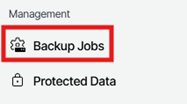
1. Navigate to Backup Jobs
In the right‑hand menu under the Management section, select Backup Jobs. This page displays all workstations and servers that have backup agents installed.
2. Create a Backup Job
Locate and select the workstation or server for which you want to configure a backup. Then click Create Job to begin setting up the backup configuration.

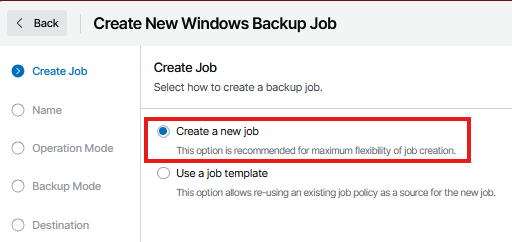
3. Create Job
Choose whether to create a new backup job or to base the configuration on an existing predefined template. Selecting Create a new job provides the greatest flexibility in defining custom backup settings.
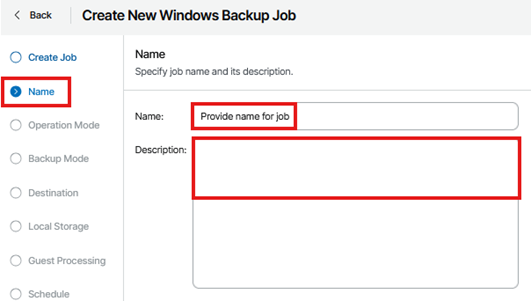
4. Job Name
Assign a meaningful name to the job and provide a clear description to outline its purpose or scope.
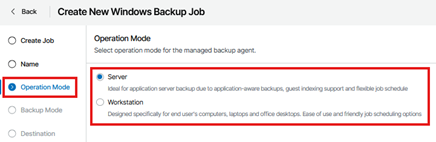
5. Operation Mode
Select the appropriate operation mode based on the type of device being protected:
5.1. Server
Recommended for server environments. This mode supports advanced features such as application‑aware backups, database protection, and guest indexing.
5.2. Workstation
Designed for desktops and laptops typically used in office settings.
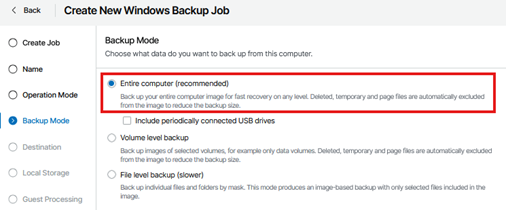
6. Backup Mode
Choose the method by which the system’s data will be backed up:
6.1. Entire Computer (Recommended)
Provides full system protection by backing up the entire machine. This option enables comprehensive recovery across all levels.
6.2. Volume-Level Backup
Backs up only selected disk volumes, suitable for scenarios where full‑system protection is not required.
6.3. File-Level Backup
Backs up specific files or folders. This method is slower and should be used only when granular file protection is necessary.
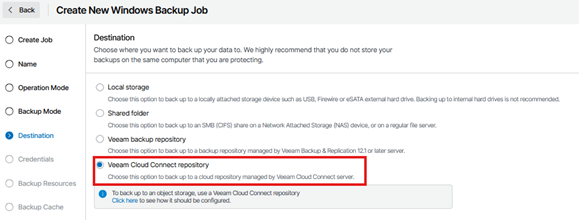
7. Destination
Select Veeam Cloud Connect Repository if the backups will be stored on the service provider’s cloud infrastructure. This ensures that all backup data is securely transmitted and maintained off‑site.
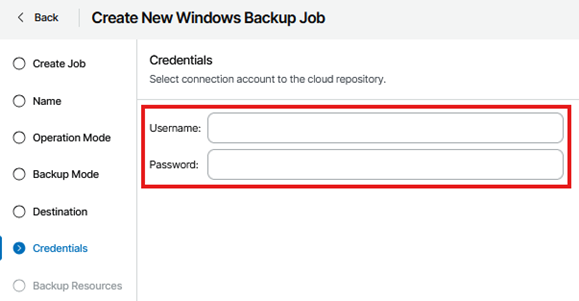
8. Credentials
Enter the subtenant details that were created for the machine you are backing up, you can refer to article: “Cloud Backup: Creating Users and Subtenants” for further instructions on how to create a subtenant (Recommended Method).
Alternatively you can use the credential provided to you during the provisioning process. These are the same login details used to access the customer portal (Not recommended).
7. Backup Resources
7.1. Retention
Specify the number of days for which backup data should be retained in the repository. This determines how long restore points are preserved before being automatically removed.
Note: Veeam may retain more restore points than the number of days specified in the retention policy. This is because Veeam preserves the entire backup chain until a new full backup is created. For example, if the retention is set to 7 days, Veeam may keep up to 14 days of restore points to ensure the integrity of the full backup chain and allow successful restores.
7.2. Archival Options (GFS)
Enable Keep some periodic full backups longer for archival purposes if long‑term retention is required. This allows selected full backups to be stored beyond the standard retention period.
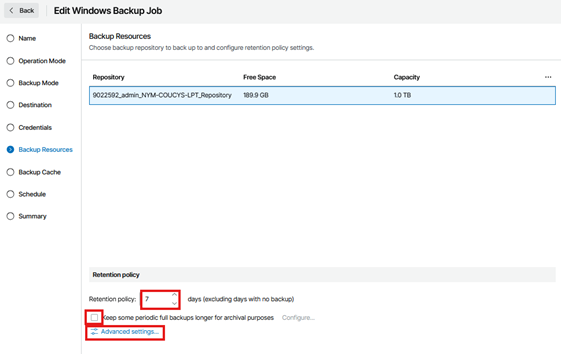
7.3. Advanced Settings
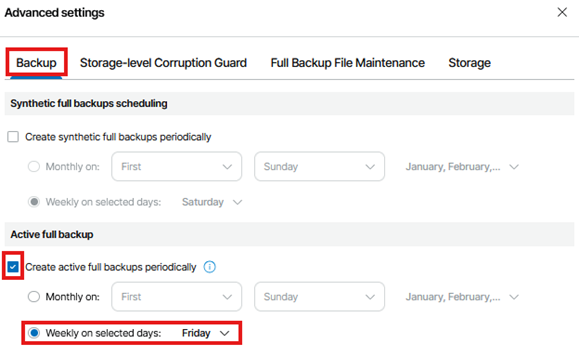
Configure additional backup behavior as needed:
7.3.1. Schedule full backups during off‑peak hours to reduce system impact.
7.3.2. Active Full Backups are recommended for optimal performance and reliability.
7.3.3. Synthetic Full Backups are available but may take longer to process and are typically not necessary unless specifically
required.
7.3.4. All other advanced options can remain at their default settings unless special configuration is needed.
7.3.5. Please contact support for guidance before enabling or changing any additional settings.
8. Backup Cache
No configuration is required for this section. The backup cache settings can be left at their default values.
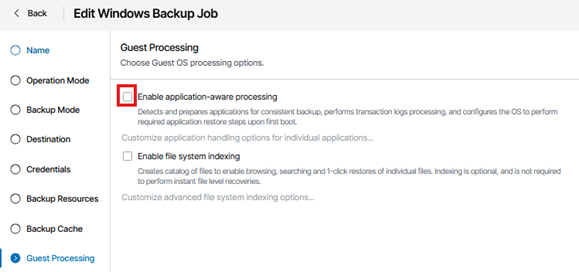
9. Guest Processing (Optional)
If the protected workload includes Microsoft Exchange, Microsoft SQL Server, Oracle, or SharePoint, enable Application‑aware processing.
This ensures transactional consistency, allows log truncation, and provides reliable application‑level restores.
Please refer to article: “Cloud Backup: Enabling Application-Aware Processing” for more information on how to set up application awareness.
10. Schedule
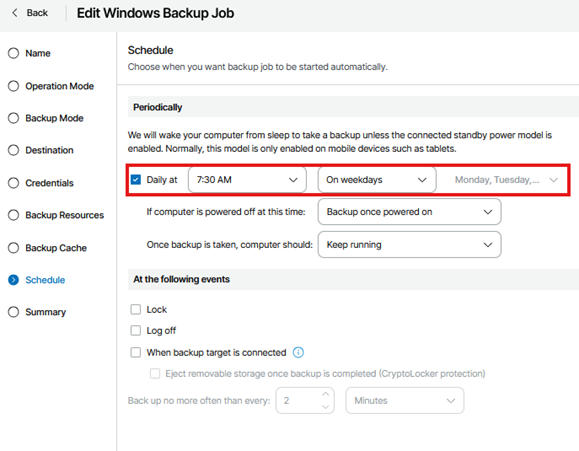
Configure how frequently the backup job should run based on your organizational requirements. You can set the job to run daily at a specific time and choose which days of the week it should occur.
Additional options allow you to dictate how the system behaves if the computer is powered off at the scheduled time (e.g., perform the backup once powered on) and specify what the computer should do once the backup is complete. You may also trigger backups based on certain events, such as system lock, logoff, or when a backup target is connected.
Best Practice Recommendations for Agent‑Based Backups
The following best practices are recommended for customers and resellers deploying agent‑based backups through Veeam Cloud Connect. These guidelines help ensure reliable recovery, consistent job performance, and long‑term data protection.
1. Use Full Machine (Entire Computer) Backups
For most environments, Entire Computer backups provide the highest level of protection.
1.1. Enables full system recovery after hardware failure, encryption/malware damage, corruption, or accidental deletion
1.2. Simplifies restore operations
1.3. Ensures all system states and configurations are captured
1.4. This method is strongly recommended as the default backup mode.
2. Prefer Active Full Backups
Configure backup jobs to use Active Full backups rather than relying exclusively on Synthetic Fulls. Why this matters:
2.1. Produces clean, independent restore points
2.2. Reduces reliance on long incremental chains
2.3. Minimizes risk of chain corruption
2.4. Improves restore reliability for long‑term retention
2.5. Schedule Active Fulls during off‑peak hours whenever possible.
3. Run an Active Full After Any Job Changes
Whenever any backup job setting is changed, run an Active Full backup immediately to apply the changes cleanly.
3.1. This includes changes to:
3.1.1. Backup mode (entire machine, volume level, file level)
3.1.2. Included or excluded volumes
3.1.3. Retention settings
3.1.4. Repository/target
3.1.5. Compression, encryption, or advanced options
3.1.6. GFS retention settings
3.1.7. Scheduling
3.2. Running an Active Full ensures the updated configuration takes effect without relying on legacy restore chains.
4. Enable GFS for Long‑Term Retention
For customers requiring extended retention, enable GFS (Grandfather–Father–Son).
4.1. Recommended Standard:
4.1.1. Daily: 7 days (lower‑priority workloads) or 14 days (high‑priority workloads)
4.1.2. Weekly: 4 weeklies
4.1.3. Monthly: 12 monthlies
4.1.4. Yearly: 5 yearlies
4.2. This retention model is designed to provide an optimal balance between short‑term recovery flexibility and long‑term archival requirements.
Retention policies should ultimately be aligned with your organisation’s specific operational, compliance, and regulatory needs.
For customised GFS retention planning or assistance, please contact Support.
5. Align Monthly GFS and Full Backup Schedules
To maintain a clean and predictable recovery chain:
5.1. Monthly GFS full backups must run on the same day as the Active Full backup.
5.2. This ensures that each monthly GFS point is a clean full backup, preventing inconsistencies and eliminating dependence on incremental chains.
6. Ensure Consistent Connectivity for On‑Prem Devices
Agent‑based backups depend on workstation/server connectivity to the gateway. To avoid failures:
6.1. Ensure devices can regularly reach Cloud Connect gateways
6.2. Confirm no firewalls or proxies block outbound traffic
6.3. Maintain reliable DNS resolution
6.4. Keep devices powered on during scheduled backup windows
6.5. Laptops should ideally back up while connected to a stable network (not in sleep mode).
7. Ensure Sufficient Bandwidth and Storage Performance
Backup success is influenced by:
7.1. Available bandwidth for offsite uploads
7.2. Local disk performance on the protected machine
7.3. Avoiding heavy workloads during backup windows
7.4. Where possible, schedule backups outside of peak production hours.
8. Keep the Agent and OS Updated
To prevent connectivity or performance issues:
8.1. Ensure Veeam agents are updated when available
8.2. Keep the operating system patched and stable
8.3. Reboot systems periodically, especially after OS or agent updates
9. Regularly Verify Backup Status
Customers should periodically:
9.1. Check the VSPC portal for warnings or errors
9.2. Confirm last successful backup times
9.3. Verify retention is meeting operational and compliance needs
9.4. A quick monthly review helps avoid unnoticed delays or failures.