
1. Configure Guest Processing
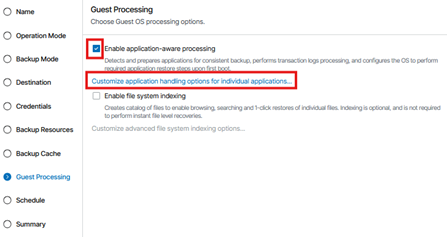
In the Guest Processing step of the job wizard, enable application‑aware processing to ensure consistent backups of workloads that require transactional integrity.
1.1. Check Enable application‑aware processing.
1.2. Select Customize application handling options for individual applications… to configure SQL, Oracle, SharePoint, or script options as needed.
2. General Processing Settings
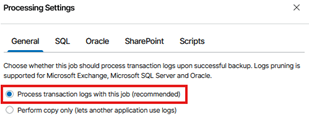
In the General tab:
2.1. Select Process transaction logs with this job (recommended) if your backup strategy includes log truncation.
2.2. Choose Perform copy only if another application manages transaction logs.
3. Microsoft SQL Server Processing Settings
If the protected machine runs Microsoft SQL Server, complete the following configuration.
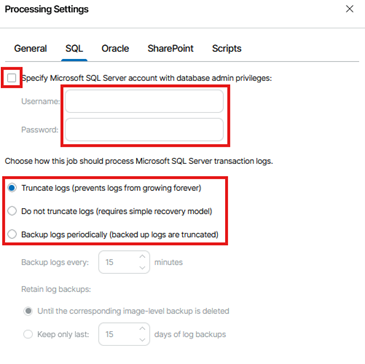
3.1. Provide SQL Administrative Credentials (If Required)
If automatic detection does not have sufficient rights, enable:
3.1.1. Specify Microsoft SQL Server account with database admin privileges. Enter the appropriate username and password.
3.2. Choose How SQL Logs Are Processed. Select one of the following options:
3.2.1. Truncate logs (recommended):
Prevents log growth by truncating SQL logs after a successful backup.
3.2.2. Do not truncate logs:
Use this if another system manages SQL log backups or the databases operate in Simple Recovery Model.
3.2.3. Back up logs periodically:
Creates separate SQL log backups at defined intervals.
Configure:
3.2.1.1. Backup logs every: define the interval
3.2.1.2. Retention: choose whether to keep logs until the image‑level backup is deleted or retain only a specific number of days
3.3. On the SQL Server (Prerequisites)
3.3.1. Set Recovery Model
3.3.1.1. Open SQL Server Management Studio (SSMS) and connect to the instance.
3.3.1.2. For each protected database:
-
-
-
-
- Right click DB → Properties → Options → Recovery Model → Full (or Bulk Logged if required).
-
-
-
3.3.1.3. Click OK.
Note: Only Full or Bulk Logged recovery models generate logs suitable for truncation/backup. Databases in Simple won’t have log backups and won’t benefit from log truncation.
3.3.2. Create a Guest Processing Service Account
3.3.2.1. On the Windows server, open Computer Management → Local Users and Groups → Users.
3.3.2.1. Create a dedicated account (e.g., veeam_svc).
3.3.2.1. Add it to Administrators (local) or grant equivalent rights per your security policy.
3.3.3. Grant SQL Permissions
3.3.3.1. In SSMS → Security → Logins → New Login.
3.3.3.2. Choose Windows authentication and select the service account (e.g., DOMAIN\veeam_svc).
3.3.3.3. Under Server Roles, select sysadmin → OK.
Why sysadmin? Ensures Veeam can discover DBs, interact with VSS, and truncate logs correctly across the instance. If your policy restricts sysadmin, ensure all equivalent granular rights are in place and validated.
3.4. Important Notes for SQL Server Workloads
3.4.1. Application‑aware processing must be enabled for SQL Servers.
3.4.2. Active Full backups must be run whenever job settings are changed.
3.4.3. Ensure:
3.4.3.1. SQL databases are in Full or Bulk‑Logged recovery model
3.4.3.2. The SQL VSS writer is healthy
3.4.3.3. A service account with sysadmin rights is provided if required
3.4.4. For long‑term retention, ensure GFS and Active Full backups run on the same day.
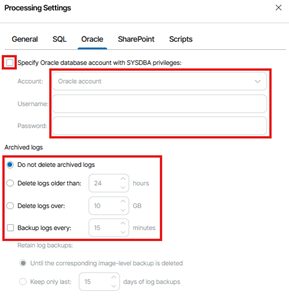
4. Oracle Processing Settings
If the workload includes Oracle databases, configure settings under the Oracle tab. Options include:
4.1. Do not delete archived logs
4.2 Delete logs older than: specify number of hours
4.3. Delete logs over: specify size threshold
4.4. Back up logs every: specify log backup interval
You may also specify Oracle SYSDBA credentials if required.
5. SharePoint Processing Settings
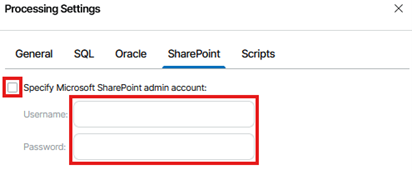
For SharePoint workloads, you may specify a dedicated SharePoint administrative account.
5.1. Check Specify Microsoft SharePoint admin account if needed.
5.2. Enter the required credentials.
6. Script Execution Settings
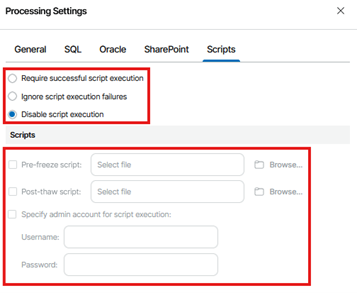
If pre‑freeze or post‑thaw scripts are required for custom application handling, configure these in the Scripts tab.
6.1. Options include:
6.1.1. Require successful script execution
6.1.2. Ignore script execution failures
6.1.3. Disable script execution (default)
6.2. You may upload:
6.2.1. Pre‑freeze script
6.2.2. Post‑thaw script
6.2.3. Provide admin credentials for script execution if required.