
User Roles and Permissions
- Company Administrator:
Provides full access to the company environment, including monitoring, reporting, user management, and configuration. This role can perform all management actions but cannot remove the Company Owner account.
Use this role for: Primary administrators responsible for managing the full Cloud Connect environment.
- Location Administrator:
Provides administrative access to a specific location or site within the company. Users can manage jobs, resources, and settings only for the locations they are assigned.
Use this role for: IT staff managing backups for a subset of the environment.
- Location User:
Provides limited access to view and manage backups for assigned locations only. Users cannot perform administrative configuration tasks.
Use this role for: Operational users who need visibility and limited backup control.
- Company Invoice Auditor:
Provides read‑only access to billing and usage information for Resellers. Users cannot view or manage backups, jobs, or configurations.
Use this role for: Finance or billing contacts.
- Subtenant:
Restricts user access to a specific subtenant within a company. Users assigned the Subtenant role can only view and manage the machines and backup jobs associated with their subtenant and have no visibility of other resources within the same company.
This role is typically used when isolating individual machines or users, particularly when creating custom backup jobs. While policy‑based jobs create subtenants automatically, custom jobs require a subtenant to be created manually by assigning this role to the user.
Use this role for:
-
- End users managing backups for their own machines.
- Isolating workloads within a shared company.
- Custom backup jobs where subtenants are not created automatically.
Understanding User Access and Subtenants
Within the Veeam Service Provider Console (VSPC), user access is controlled by a combination of user roles and subtenants. These two concepts work together but serve different purposes.
General User Access
General user access is determined by the role assigned to a user. The role defines what actions a user is allowed to perform in the VSPC portal, such as managing backups, viewing reports, or administering settings.
Examples of general user access include:
- Company Administrators who can manage all aspects of the company environment
- Location Administrators or Users who manage or view backups for specific locations
- Invoice Auditors who can only view billing information
Users with general access roles can typically see all resources that fall within their allowed scope, such as all machines or jobs under a company or location.
Subtenant‑Based Access
Subtenant access is used to further limit what resources a user can see, even within the same company. A subtenant acts as a logical boundary inside a company, separating machines and backup jobs from one another.
Users assigned to a subtenant can:
- Access the VSPC portal
- Manage backups and jobs assigned to their subtenant
- View only the machines and data associated with that subtenant
They cannot view or manage:
- Other machines within the same company
- Backup jobs outside their assigned subtenant
- Resources belonging to other users or workloads
Comparing General Access and Subtenant Access
- User roles control what a user can do
- Subtenants control what a user can see
For example:
- A Company Administrator may have permission to manage backups, users, and settings across the entire company.
- A Subtenant user may also be allowed to manage backups, but only for the machines assigned to their subtenant.
When Subtenants Are Typically Used
Subtenants are commonly used when:
- Multiple users or teams exist within the same company
- End users should only manage backups for their own machines
- Custom backup jobs are created outside of policy‑based workflows
- Individual workloads need to be isolated within a shared environment
By using subtenants, organizations can provide user access without exposing other systems or backup data.
User and Subtenant Creation
1. Log in to the VSPC Portal
1.1. Open a web browser.
1.2. Navigate to the Veeam Service Provider Console (VSPC) portal.
1.3. Log in using an account with Company Administrator access.
2. Navigate to Roles and Users
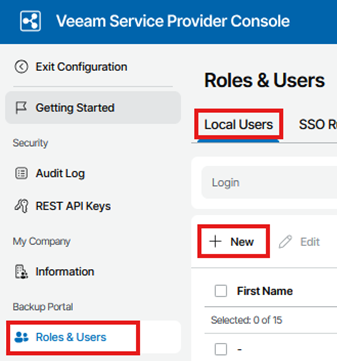
From the top‑right corner of the portal, select Configuration.
2.1. In the left‑hand navigation menu, select Roles & Users.
2.2. Ensure the Local Users tab is selected.
2.3. This page displays all existing users within the company.

3. Create a New User
3.1. Start User Creation
3.2. On the Roles & Users page, select + New.
3.3. The New User wizard will open.
4. Select the User Role
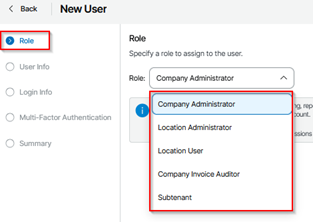
4.1. In the Role step, open the Role drop‑down list.
4.2. Select the appropriate role for the user (see role descriptions below).
4.3. Review the role description displayed on screen.
4.4. Select Next to continue.
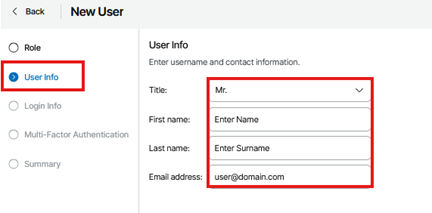
5. Enter User Information
5.1. In the User Info step, complete the following fields:
5.1.1. Title (optional)
5.1.2. First name
5.1.3. Last name
5.1.4. Email address
5.2. Select Next to continue.
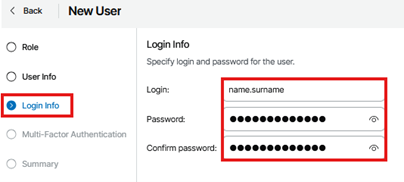
6. Configure Login Details
6.1. In the Login Info step, enter:
6.1.1. Login (username)
6.1.2. Password
6.1.3. Confirm password
6.1.4. Ensure the password meets the required complexity rules.
6.2. Select Next to continue.
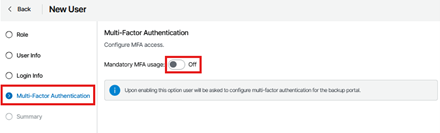
7. Configure Multi‑Factor Authentication (Optional)
7.1. In the Multi‑Factor Authentication step, review the MFA setting.
7.2. Enable Mandatory MFA usage if required.
7.3. Select Next to continue.
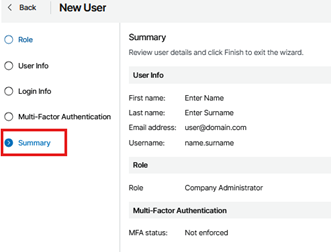
8. Review and Create the User
8.1. Review the Summary section.
8.2. Confirm that all details are correct.
8.3. Select Finish to create the user.
9. Verification
9.1. Log out of the administrator account.
9.2. Log in using the newly created user account.
9.3. Confirm that:
9.3.1. The user can access the portal
9.3.2. Visibility aligns with the assigned role or subtenant
Please proceed to the next article in the provisioning series: “Cloud Backup: Installing Management Agents (Windows)” or “Cloud Backup: Installing Management Agents (Linux)” for more information on how to install a management agent.