
Note: The steps in this guide are shown from a reseller’s perspective. Resellers manage multiple tenants and therefore see additional options when configuring reports.
Customer accounts may see fewer steps, as the company and location fields are automatically pre‑selected for them and do not require manual selection.
1. Go to the Reports Section
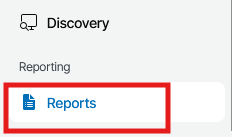
In the VSPC customer portal, navigate to Reporting → Reports from the left‑hand menu. This area contains both previously generated reports and report configurations.
2. Go to Configurations
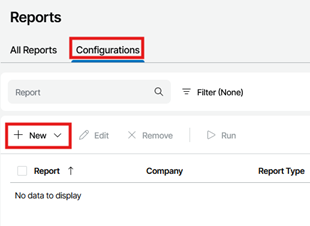
Select the Configurations tab at the top of the Reports page. This tab is used to create, edit, and schedule report definitions.
3. Create a New Report
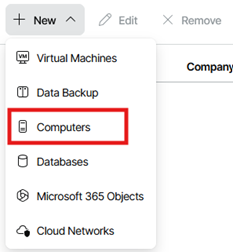
Click New and choose Computers from the drop-down. This option is appropriate for server and workstation workloads protected by the backup agent.
4. Name
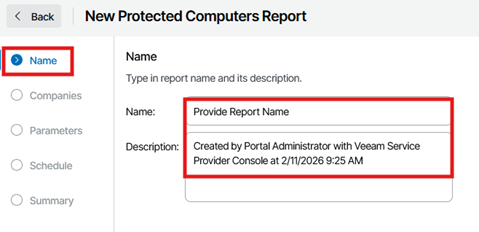
Provide a clear Name for the report and, optionally, a Description that clarifies the purpose or target audience (e.g., monthly RPO verification).
Note: Use a naming convention that makes the report easy to identify later (for example, “ – Monthly RPO”).
5. Companies
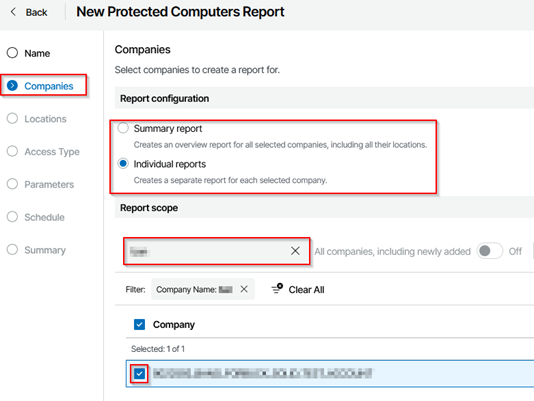
Define the scope of the report:
5.1. Report configuration
5.1.1. Summary report – Produces a single overview across all companies within your scope.
5.1.2. Individual reports – Produces a separate report for each selected company.
5.2. Report scope
5.2.1. Use search and filters to locate the relevant company or companies.
5.2.2. Select the required entry/entries to include in the report.
Tip: If you manage multiple tenants, confirm the correct company is selected before continuing.
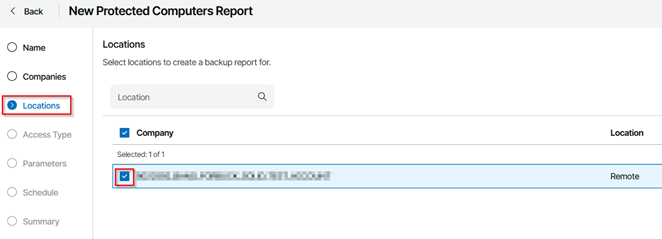
6. Locations
Choose the Location(s) that should be included (for example, remote or site‑specific entries associated with the selected company).
6.1. Select the appropriate location row(s) to proceed.
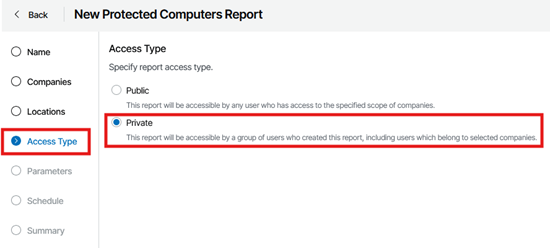
7. Access Type
Set the visibility of the report configuration:
7.1. Public – Accessible to users who have access to the selected companies and locations.
7.2. Private – Restricted to the user or group who created the report and users belonging to the selected companies.
Choose Private if the report should only be visible to a limited group of users.
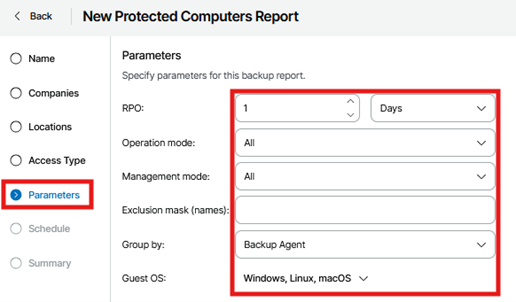
8. Parameters
Configure the reporting parameters:
8.1. RPO:
Specify the interval and unit (e.g., 1 Day, 7 Days) that defines the acceptable backup window.
8.2. Operation mode:
Select the workload type to include (e.g., All unless a narrower scope is required).
8.3. Management mode:
Choose the management category to include (e.g., All to capture every applicable machine).
8.4. Exclusion mask (names):
(Optional) Enter machine name patterns to exclude from the report.
8.5. Group by:
Select how the results should be grouped (e.g., Backup Agent).
8.6. Guest OS:
Confirm the operating systems in scope (e.g., Windows, Linux, macOS).
You can leave unspecified fields at their defaults unless your environment requires a narrower or more granular selection.
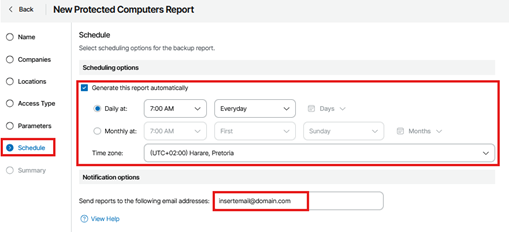
9. Schedule
Define when the report should be generated and who should receive it:
9.1. Scheduling options
9.1.1. Enable Generate this report automatically.
9.1.2. Choose Daily or Monthly, set the time, and select the relevant days or months.
9.1.3. Verify the Time zone is correct for your operations.
9.2. Notification options
9.2.1. Enter one or more email addresses to receive the report.
9.2.2. (If available) Customize the email subject and message.
9.3. For monthly proof‑of‑backup, a common choice is Monthly on the 1st at a standard reporting time.
10. Summary
Review the Summary page to confirm all selections, including template, name, report type, locations, access type, RPO period, grouping, schedule, and recipients.
10.1. Click Finish or Save to create the report configuration.
11. (Optional) Run On‑Demand
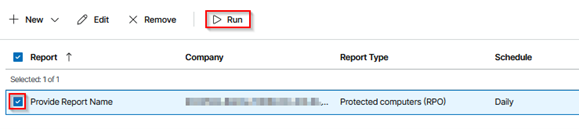
From Reports → Configurations, select the newly created report and choose Run (if available) to generate a copy immediately—useful for validation before the first scheduled run.
12. View or Send the Report
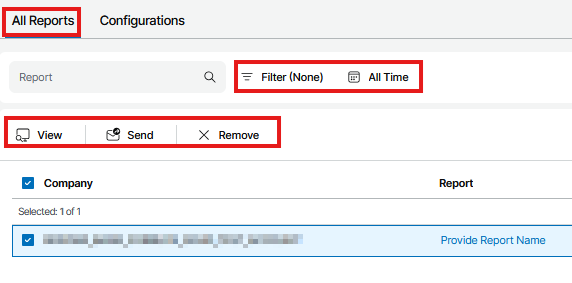
After generation, the report will be available under the All Reports tab.
12.1. Use View to open it in the portal.
12.2. Use Send to email it to additional recipients if needed.
12.3. The report will also be delivered automatically to the addresses configured in Notification options according to the schedule.