
In some scenarios, such as system failure or operating system corruption, a bare‑metal recovery may be required. Veeam Recovery Media is used to restore an entire system, including the operating system and disk contents, from an existing backup.
Follow the steps below to create recovery media using the Veeam Create Recovery Media application.
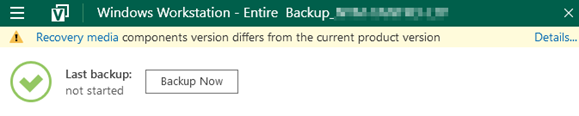
If you do not have recovery media set up you will see the following notice when opening your backup agent.
1. Open the Veeam Create Recovery Media for Windows
1.1. On the protected workstation or server.
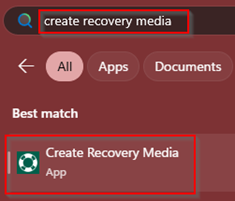
1.2. Search for the Veeam Create Recovery Media application using the Windows start menu.
1.3. Once the application has launched, the main dashboard will be displayed.
2. Configure Recovery Media Options
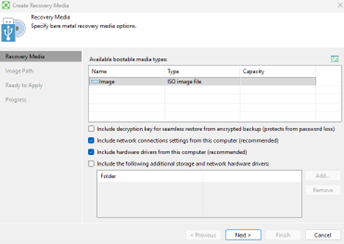
2.1. Review and select the appropriate options for the recovery media:
2.1.1. Choose whether to include additional drivers if required for your environment.
2.1.2. If backups are encrypted and the decryption password may not be readily available during recovery, it is recommended to enable the option to include the decryption key.
2.2. Once the required options have been selected, click Next.
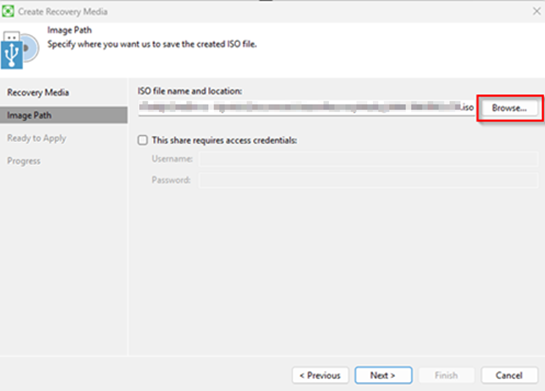
3. Specify the Output Location
3.1. Choose a location where the recovery image file will be saved.
3.2. The wizard will generate a recovery image in ISO format.
Note: The generated ISO file must be written to either a bootable USB device or a CD/DVD to be usable.
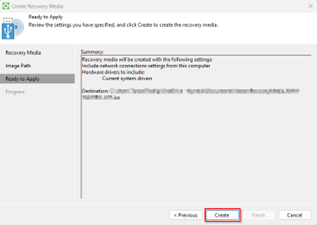
4. Create the Recovery Media
4.1. Click Create to begin the recovery media creation process.
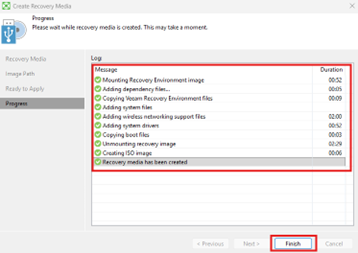
4.2. Wait for the process to complete. Progress will be displayed within the wizard.
5. Confirm Completion
Once completed, a summary screen will be displayed confirming that the recovery media image was created successfully.
Ensure the resulting ISO file is stored securely and written to bootable media for use during a full system recovery if required.