
This agent handles licensing for backup agents and enables customer management via the VSPC portal.
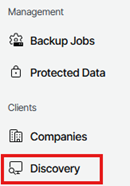
1. Go to the Discovery Section in the VSPC portal.
In the left‑hand navigation menu, select Discovery.
2. View Discovered Computers
Under Discovered Computers, a list of all machines with installed management agents will be displayed if any have been installed. For new set ups, this area will not display any data.
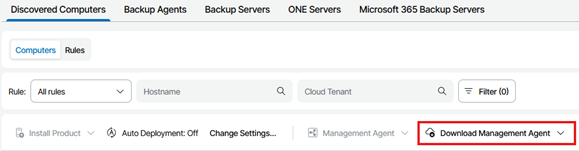
3. Download the Management Agent
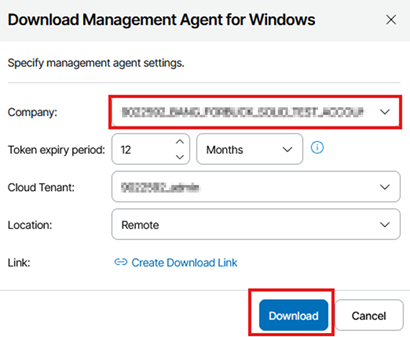
Under the Discovered Computers section, select Download Management Agent.
4. Company (Resellers Only)
If you are a reseller, choose the correct customer/company from the drop-down. Direct customers will have the company preselected automatically.
5. Choose Your Download Method
You may either:
5.1. Download the installer directly, or
5.2. Generate a download link to use on another device.
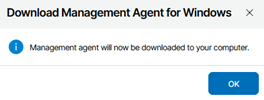
6. Run the Installer
Open the downloaded .exe file from your Downloads folder.

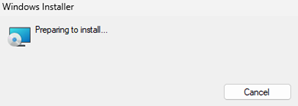
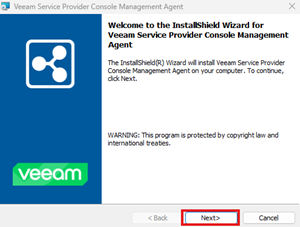
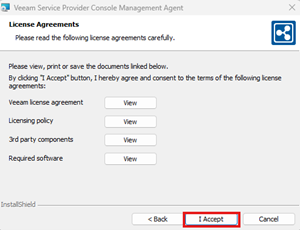
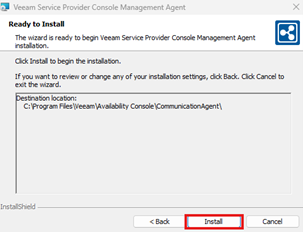
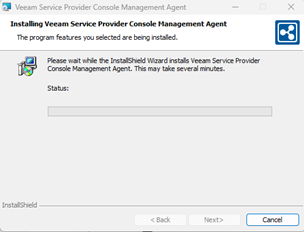
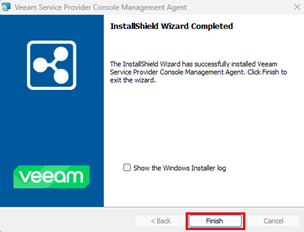
7. Complete the Installation Wizard
Run through the wizard. No configuration changes are required—the agent will automatically obtain settings from the VSPC server.
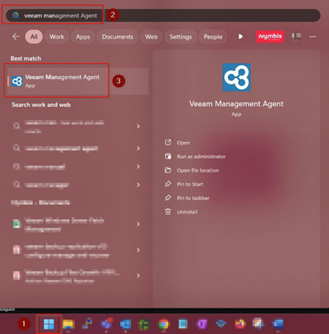
8. Open Management Agent
Launch the Management Agent and ensure it connects successfully.
8.1. From the Windows Start Menu, search for Veeam Management Agent and open the application.
9. Accept Administrative Prompt (If Shown)
If prompted with “Do you want to allow this app to make changes to your device?”, click Yes. The application may open in the background.
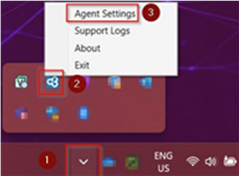
10. Open Agent Settings
10.1. Go to the system tray (bottom right corner of the screen).
10.2. Click the ^ icon to show hidden icons.
10.3. Right click the Veeam Management Agent icon and select Agent Settings.
11. Confirm successful connection
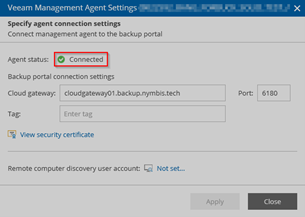
In the Management Agent Settings window, confirm that the connection is successful:
NOTE: These gateways form part of a load balanced gateway pool. Because of this, any one of the three is valid — the system assigns a gateway automatically to distribute workload improve performance.
12. Unsuccessful Connection
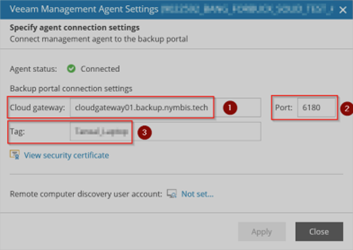
In the Management Agent Settings window, confirm that the automatically retrieved configuration is correct. These values are normally populated directly from the Veeam Service Provider Console and should not require manual changes. Verify the following:
12.1. Cloud Gateway:
Ensure the field displays one of the following three gateways:
13.1.1. backup.nymbis.tech
13.1.2. backup.nymbis.tech
13.1.3. backup.nymbis.tech
12.2. Port:
Confirm that the port is set to 6180, which is required for communication with the Veeam Service Provider Console.
12.3. Tag (Optional):
You may specify a tag to help identify the server or workstation, especially useful in environments with multiple management agents.
13. Test Connectivity (If the Agent Fails to Connect)
13.1. Open Command Prompt
Open the Start Menu, search for Command Prompt, and launch it.
13.2. Test Internet Access
Run:
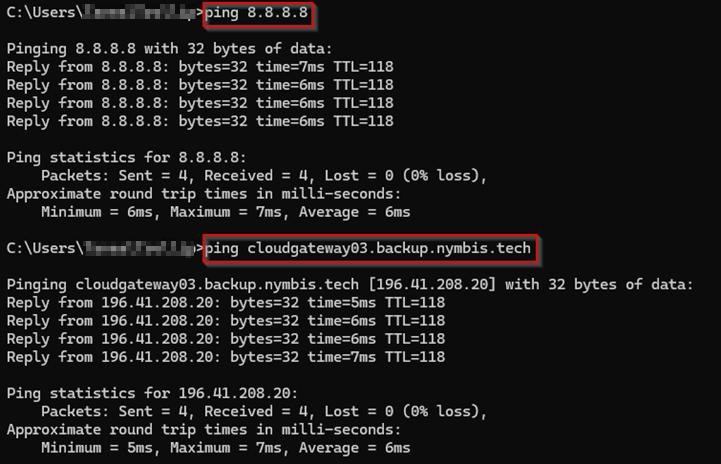
ping 8.8.8.8
13.3. Test Connectivity to Nymbis Cloud Gateways
Example:
ping cloudgateway03.backup.nymbis.tech
13.4. A successful test will return responses similar to this:
14. If Connectivity Fails
If you cannot reach the internet or any gateway, an internal network or firewall issue is likely present. Please contact your internal IT department or network administrator for further assistance.
Please proceed to the next article in the provisioning series: “Cloud Backup: Installing Backup Agents” for more information on how to install a backup agent.