
This article is the first step in the Cloud Connect provisioning series. It assumes you have already received access to the Veeam Service Provider Console (VSPC) and that the required resources have been allocated to your organization.
This step applies to resellers provisioning Cloud Connect for their customers. In this step, you will create a company within the VSPC portal for the customer you are on-boarding. Creating a company establishes the customer context required for all subsequent configuration actions.
The next articles in this series continue the provisioning process by installing and configuring the management and backup agents.
Creating a company
1. Log in to the Backup Portal
1.1. Open a web browser and go to:https://portal.backup.nymbis.tech/
1.2. Enter your credentials:
- Username — must be in the format: CompanyID\Username
(This format is provided in your credentials document.) - Password — as provided.
- Note: If your username does not include the CompanyID\ prefix, contact the person or team who provided your credentials. The prefix is required to sign in to the portal.
- Username — must be in the format: CompanyID\Username
2. Open the company creation wizard
2.1. Login to the VSPC portal:
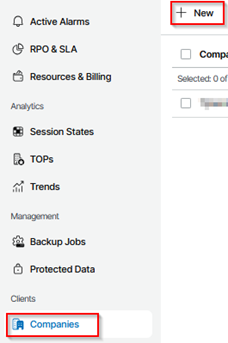
In the left‑hand navigation menu, go to Clients → Companies.
2.2. At the top of the Companies page, select New.
NOTE: This opens the company creation wizard, where you can proceed to enter company information, configure user access, and enable the required services.
3. Company Information
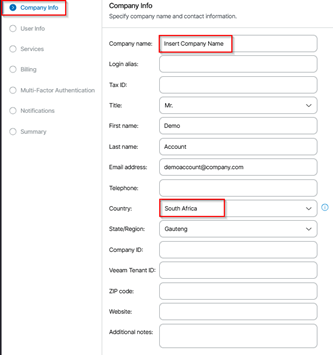
In the Company Info section, complete the required fields to define the new tenant.
3.1. Company Name:
Enter the name of the customer or tenant you are creating.
3.2. Country
Select the country where the customer is located.
3.3. Optional Fields
All other fields (such as contact details, identifiers, website, and notes) are optional and may be completed based on your internal requirements.
3.4. Once the Company Information section is complete, proceed to the User Info section.
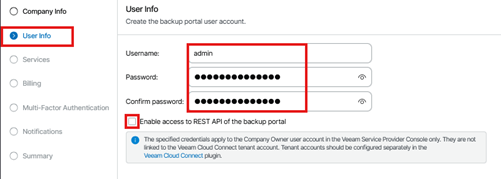
4. Create the portal user account
In the User Info section, configure the primary user account for the newly created company.
4.1. Username
Enter the username that will be used to sign in to the VSPC portal.
4.2. Password
Set a secure password for the account.
4.3. Confirm Password
Re enter the password to confirm.
4.4. REST API Access (Optional)
Enable this option only if the customer requires API based integration with the backup portal.
Once the user information has been completed, continue to the Services section.
5. Configure service options for the company
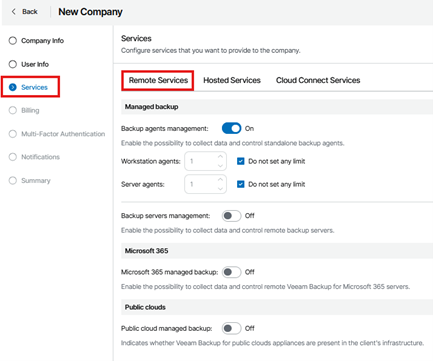
In the Services section, choose which service types will be available to the customer. The options are grouped into Remote Services, Hosted Services, and Cloud Connect Services.
5.1. Remote Services
Under the Remote Services tab, configure the services used to manage agent‑based backups.
5.1.1. Backup Agents Management
Turn this option On to allow management of standalone backup agents. Set limits for:
5.1.1.1. Workstation Agents
5.1.1.2. Server Agents
Select Do not set any limit if no cap is required.
5.1.2. Backup Servers Management
Enable this if remote backup servers need to be managed through the portal.
5.1.3. Microsoft 365 Managed Backup
Enable if Microsoft 365 backup functionality is required.
5.1.4. Public Cloud Managed Backup
Enable if the customer will back up workloads running in AWS, Azure, or Google Cloud.
5.2. Hosted Services (Optional)
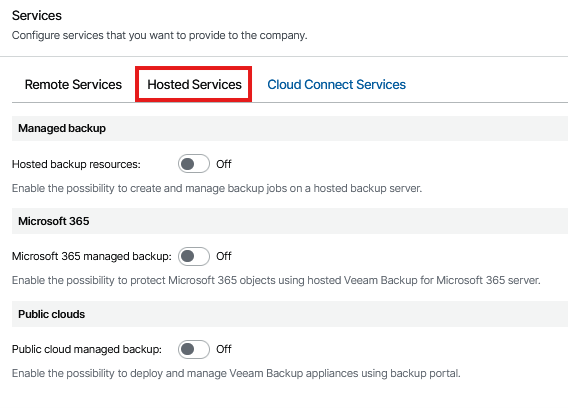
Switch to the Hosted Services tab to enable services used when the customer operates their own hosted infrastructure.
5.2.1. Hosted Backup Resources
Enable to allow the creation and management of backup jobs on a hosted backup server.
5.2.2. Microsoft 365 (Hosted)
Enable if the customer will use a hosted Microsoft 365 backup server.
5.2.3. Public Clouds (Hosted)
Enable to allow deployment and management of Veeam Backup appliances for public cloud environments
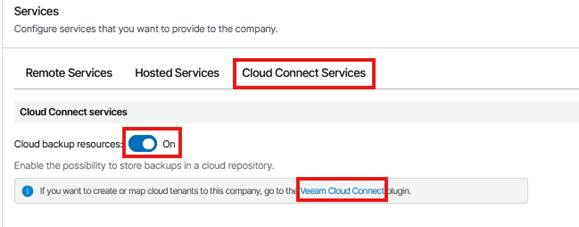
5.3. Cloud Connect Services
Navigate to the Cloud Connect Services tab.
5.3.1. Cloud Backup Resources
Turn this option On to allow the customer to store backups in the service provider’s cloud repository.
Once services have been configured according to the customer’s requirements, proceed to the Billing section.
6. Billing (Optional)
Configuration is optional and may be completed at a later stage.
7. Multi‑Factor Authentication (Optional)
MFA setup is optional and can be applied during or after initial configuration.
8. Notifications (Optional)
Notification settings are optional and can be configured based on customer preference.
9. Summary
Review the configuration summary and complete the creation process once all details have been confirmed.
10. Support
Please contact [email protected] should you require assistance with any of the above steps.
Please proceed to the next article in the provisioning series: “Cloud Backup: Creating Users and Subtenants” for more information on how to create users and subtenants.